
Portal walkthrough
How to go from a new portal account to your first EcoCash Instant Payment (EIP) sandbox request.
You’ll register and sign in, request sandbox access, collect your credentials from the portal
inbox, activate them to get an Authorization header, and whitelist a test number.
Portal: https://developers.ecocash.co.zw/portal Product: EcoCash Instant Payment — Online Payment Gateway (Sandbox) Auth scheme: HTTP Basic Auth —
Authorization: Basic base64(username:password)
Overview
| Step | Where | What you get |
|---|---|---|
| 1. Register and sign in | Portal sign-in page | A developer portal session |
| 2. Request sandbox access | EcoCash Instant Payment → Authentication | Your sandbox username (the password is sent to your inbox) |
| 3. Collect your credentials | Inbox → Your sandbox credentials | Basic auth username and password |
| 4. Save & activate | EcoCash Instant Payment → Authentication | The derived Authorization header, with the sandbox activated |
| 5. Whitelist a test number | Test Numbers | A verified MSISDN to use as endUserId |
| 6. Start testing | Sandbox API | Requests and responses against the EcoCash sandbox |
Step 1 — Register and sign in
Register an account on the EcoCash Developer Portal, then sign in with the username (or email) and password sent to your registered email.
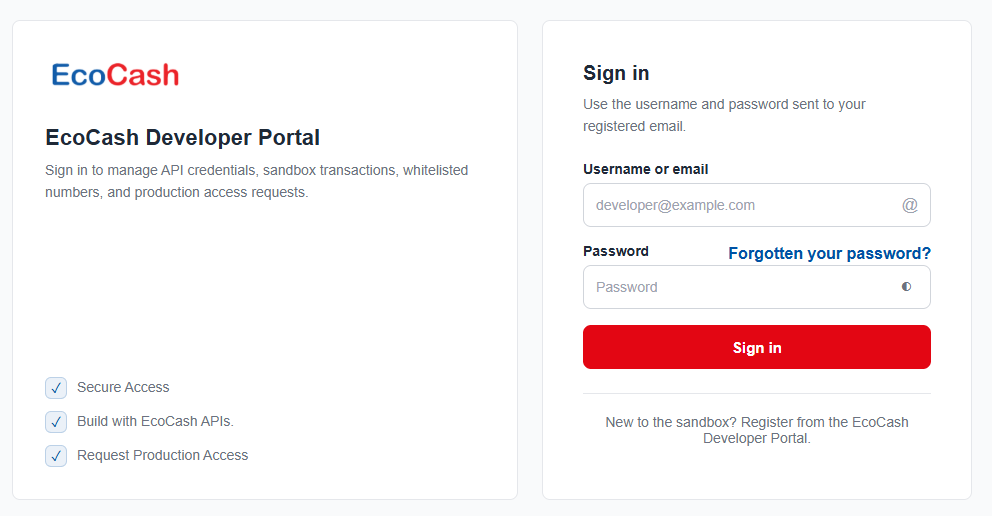
The sign-in page. New to the sandbox? Use the “Register from the EcoCash Developer Portal” link at the bottom of the form.
Step 2 — Request sandbox access
- From Products, open EcoCash Instant Payment (under Payments).
- Open the Authentication tab. It is also step 1 — Authenticate in the progress bar.
- Under 1 · Request Sandbox Access, click Request Sandbox Access.
The portal generates your sandbox credentials. Your username is returned straight away, and the full password is dispatched to your developer inbox.
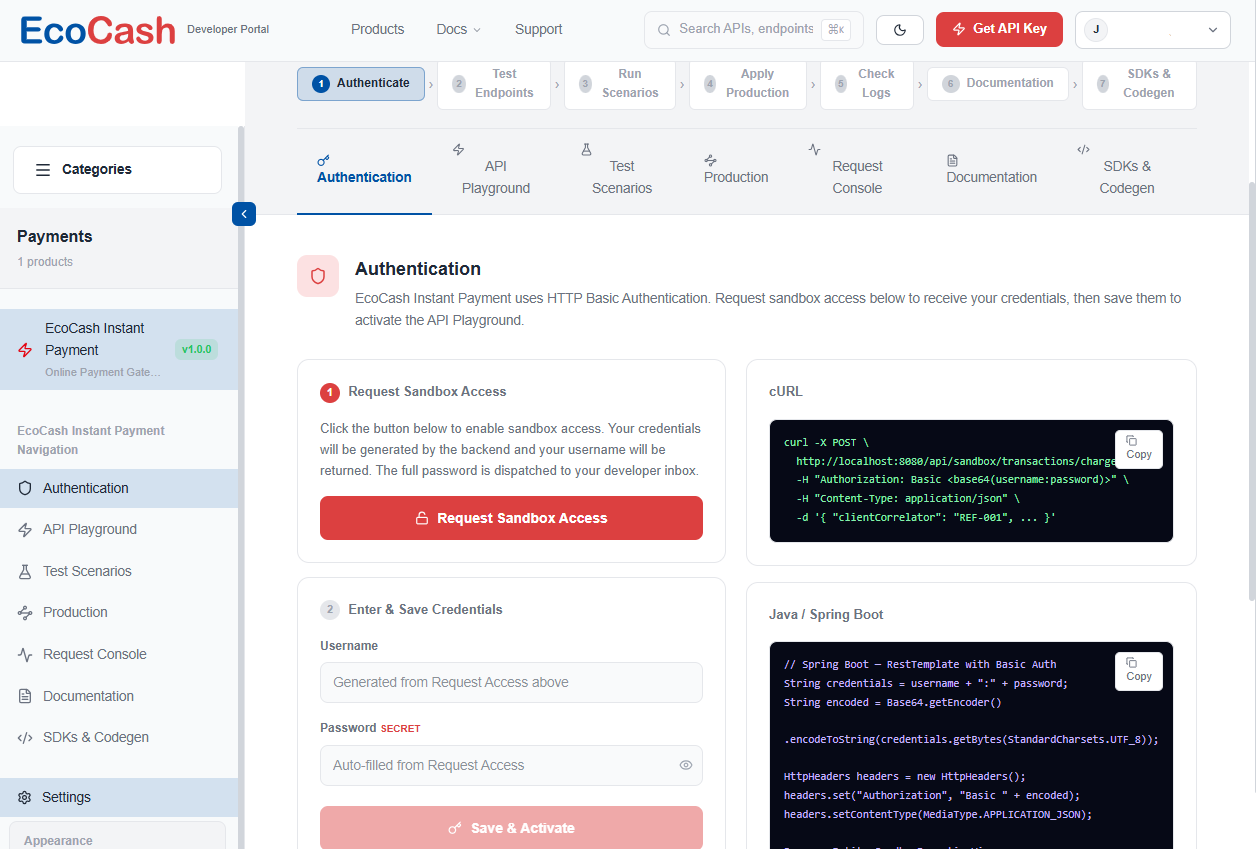
The Authentication tab: “Request Sandbox Access” (step 1) and “Enter & Save Credentials” (step 2).
Note: the cURL sample on the right of this page points to a local development address (
http://localhost:8080/...). Don’t use it for your requests. Use the sandbox base URL in Step 6.
Step 3 — Collect your credentials from the Inbox
- Open Inbox in the left navigation. A badge shows unread messages.
- Open the message “Your sandbox credentials”. It comes from EcoCash Sandbox and its
category is
SANDBOX_CREDENTIALS. - Copy the Basic auth username (it starts with
sbx_) and the Basic auth password.
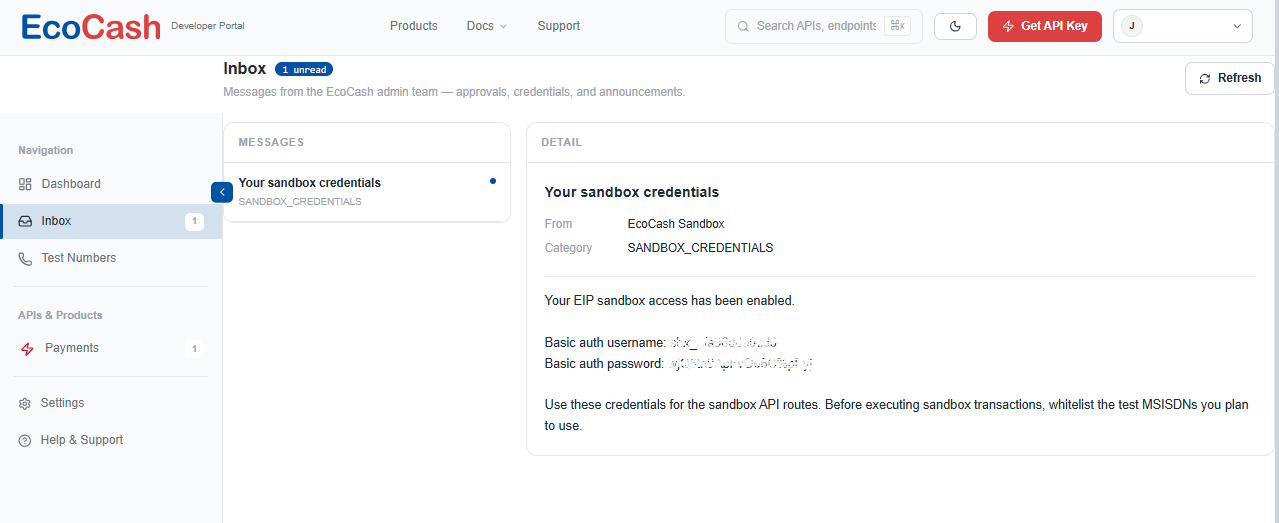
The credentials message (values blurred here). It reads: “Use these credentials for the sandbox API routes. Before executing sandbox transactions, whitelist the test MSISDNs you plan to use.”
🔒 Treat these as secrets. Keep them in environment variables or a secret manager, and never commit them to source control.
Step 4 — Save & activate to get the Authorization header
- Go back to EcoCash Instant Payment → Authentication.
- Under 2 · Enter & Save Credentials, paste the Username and Password from the inbox message.
- The Derived Authorization header field fills in automatically. Use the eye icon to reveal it and the copy icon to copy it.
- Click Save & Activate to activate the sandbox for your session.
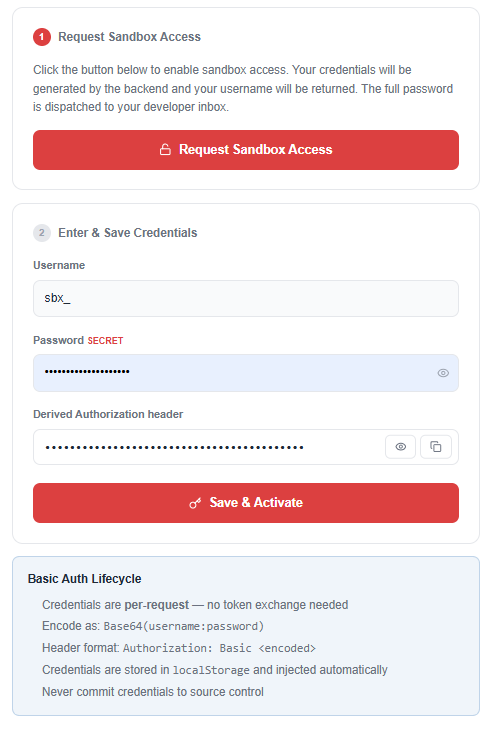
The derived Authorization header (masked here) and the Basic Auth Lifecycle panel.
What the derived header is. It is ordinary HTTP Basic authentication. You can build it yourself:
# username:password -> Base64 -> "Basic " prefix
printf '%s' 'sbx_yourusername:yourpassword' | base64
# Authorization: Basic <the Base64 output>
Basic Auth Lifecycle, as the portal explains it:
- Credentials are sent with every request. There is no token exchange.
- Encode as
Base64(username:password). - Header format:
Authorization: Basic <encoded>. - The portal stores the credentials in
localStorageand injects them into its own tools automatically. - Never commit credentials to source control.
Step 5 — Whitelist a test number
Sandbox transactions only work with whitelisted MSISDNs. Whitelist every number you plan to
use as endUserId before you send a charge.
- Open Test Numbers in the left navigation.
- Click Add Number (or Add a number) and enter a valid Zimbabwe MSISDN.
- Enter the OTP EcoCash sends to that number.
- Once the number shows Verified, you can use it as
endUserIdin every sandbox API call.
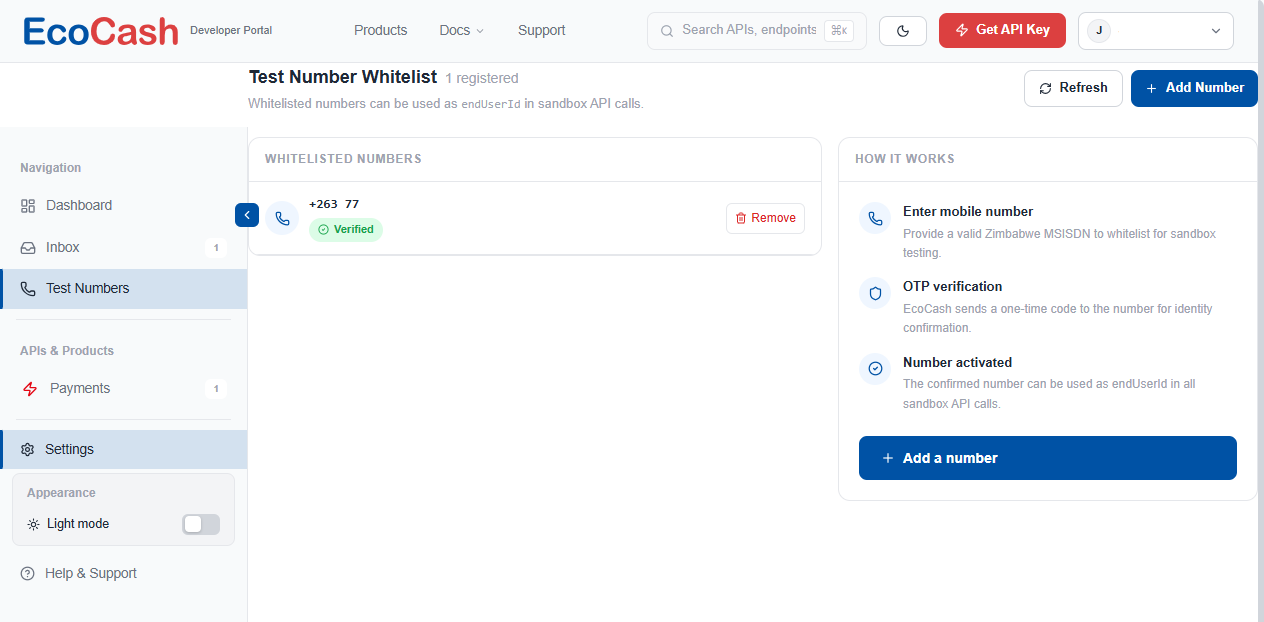
The Test Number Whitelist page (number partly masked here), with its “How it works” panel.
Step 6 — Start testing
You’re ready to send requests to the sandbox and read the responses.
- Base URL:
https://developers.ecocash.co.zw/sandbox/payment/v1 - Headers on every request:
Authorization: Basic <encoded>Content-Type: application/json
curl -X POST 'https://developers.ecocash.co.zw/sandbox/payment/v1/transactions/amount/' \
  -H 'Authorization: Basic <your-base64-credentials>' \
  -H 'Content-Type: application/json' \
  -d '{ ... }'
Full endpoint details (Charge Request, Transaction Lookup, Refund / Reversal), the error codes,
the PIN test matrix and the test script are in ECOCASH-EIP-API.md. Ready-to-run client
code for Java, PHP / Laravel, JavaScript, C# and Python is in ECOCASH-EIP-SDK-REFERENCE.md.
Troubleshooting
| Symptom | Likely cause | Fix |
|---|---|---|
| No password after requesting access | The password goes to the portal Inbox, not the Authentication page | Open Inbox → Your sandbox credentials |
401 Unauthorized |
Missing or malformed Authorization header, or wrong username/password |
Re-copy both values from the Inbox message and rebuild the Basic header |
| Transactions fail for a number | The MSISDN isn’t whitelisted or verified | Add it under Test Numbers and complete OTP verification |
Images used in this guide
In this repository the screenshots live in docs/assets/images/screens/:
| File | Shows |
|---|---|
ecocash-developer-portal-signin.png |
Portal sign-in page (Step 1) |
request-sandbox-access.png |
Authentication tab — Request Sandbox Access (Step 2) |
sandbox-credentials-inbox-message.png |
Inbox — Your sandbox credentials message (Step 3) |
derived-authorization-header.png |
Enter & Save Credentials — derived Authorization header (Step 4) |
test-number-whitelist.png |
Test Number Whitelist (Step 5) |
Screenshots mask or blur all credential values and phone numbers. Keep it that way in anything you publish.
This page is generated from the file in reference/ECOCASH-DEVELOPER-PORTAL-GETTING-STARTED.md. Spotted something wrong? Open an issue.