
Get sandbox access
Before your first API call you need a developer portal account, sandbox credentials, and a verified test number. This takes about ten minutes.
| Step | Where in the portal | What you get |
|---|---|---|
| 2.1 | Sign-in page | A developer portal session |
| 2.2 | EcoCash Instant Payment → Authentication | Your sandbox username |
| 2.3 | Inbox → Your sandbox credentials | Your username and password |
| 2.4 | EcoCash Instant Payment → Authentication | The Authorization header, with the sandbox activated |
| 2.5 | Test Numbers | A verified EcoCash number to test with |
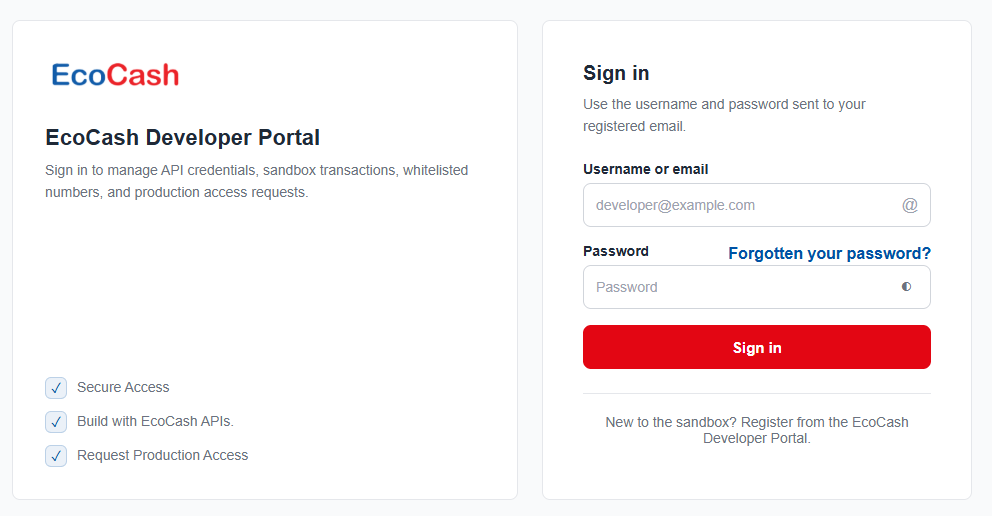
2.1 Register and sign in
Register on the EcoCash Developer Portal, then sign in with the username (or email) and password sent to your registered email.
2.2 Request sandbox access
- From Products, open EcoCash Instant Payment (under Payments).
- Open the Authentication tab (step 1 — Authenticate in the progress bar).
- Under 1 · Request Sandbox Access, click Request Sandbox Access.
Your username is returned straight away. Your password is sent to your portal Inbox.
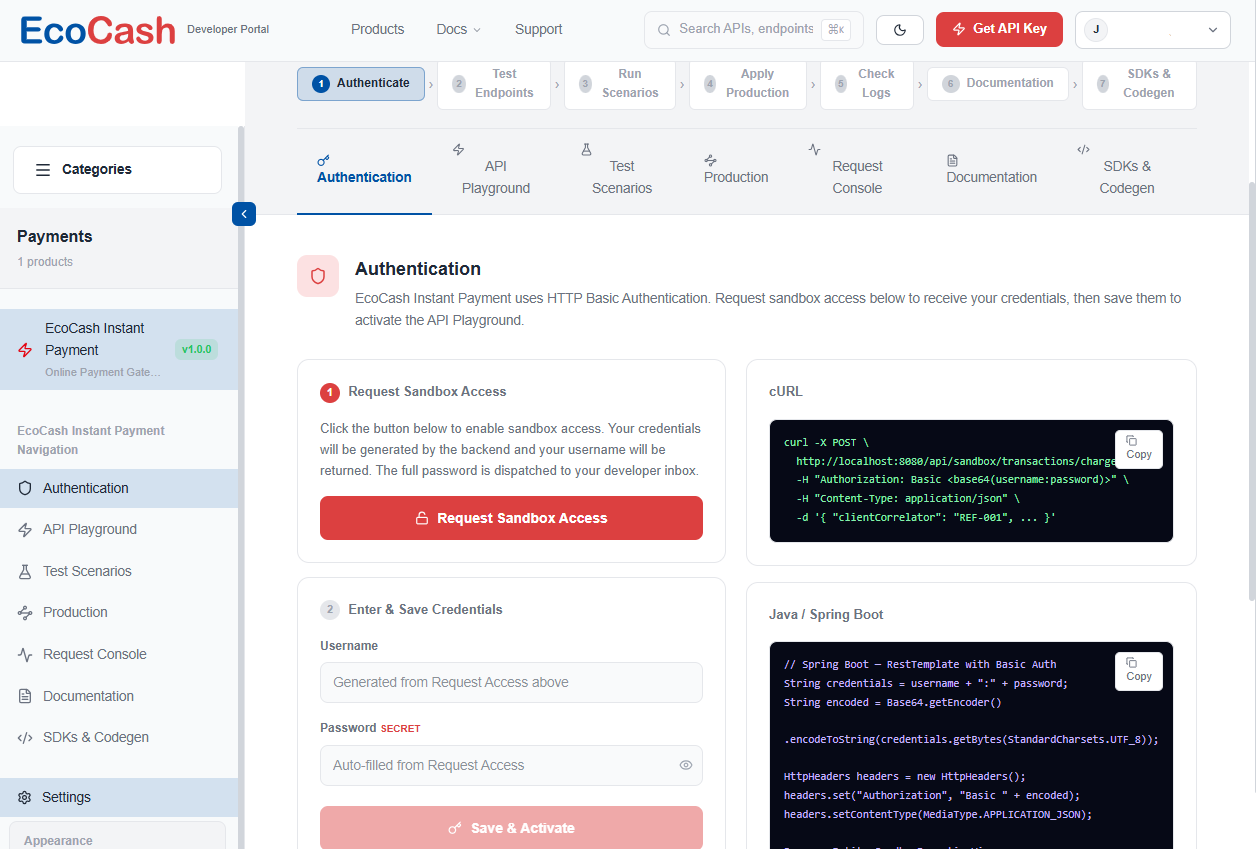
Don’t copy the cURL sample on this page. It points to a local development address (
http://localhost:8080/api/sandbox/transactions/charges). Use the sandbox base URL from Quick facts instead.
2.3 Collect your credentials from the Inbox
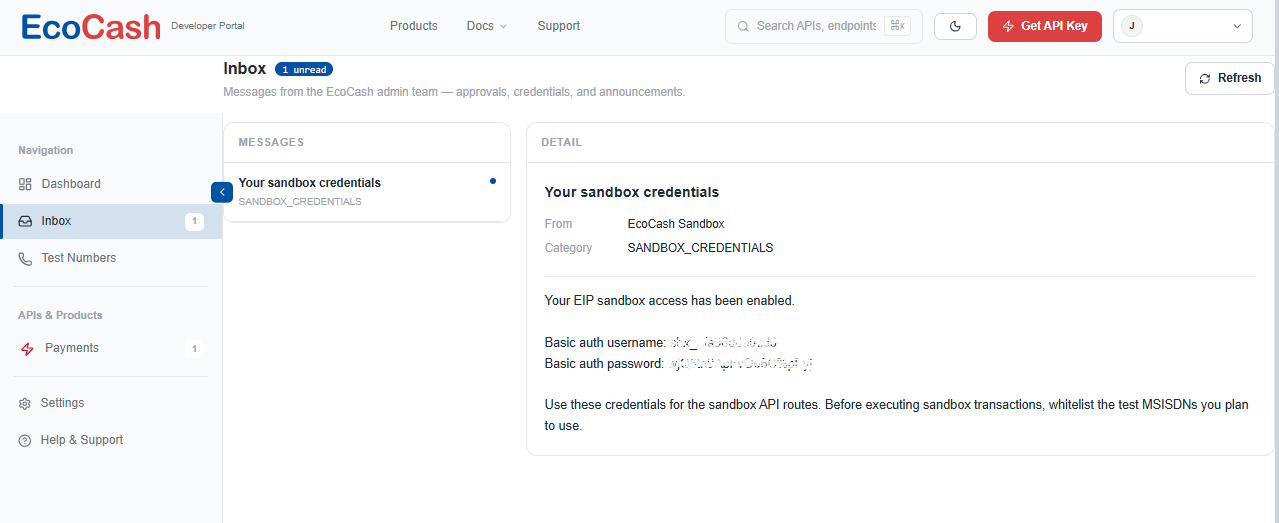
- Open Inbox in the left navigation.
- Open “Your sandbox credentials”. It comes from EcoCash Sandbox and its category is
SANDBOX_CREDENTIALS. - Copy the Basic auth username (it starts with
sbx_) and the Basic auth password.
🔒 These are secrets. Keep them in environment variables or a secret manager. Never commit them, and never ship them to a browser or mobile app.
2.4 Save & activate to get the Authorization header
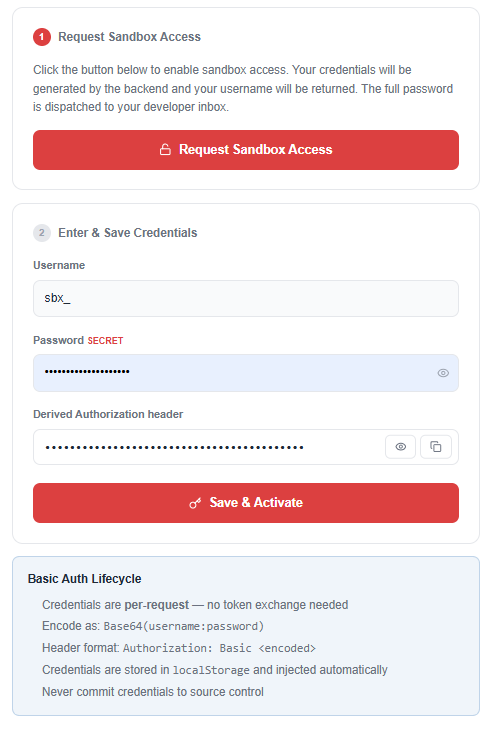
- Go back to EcoCash Instant Payment → Authentication.
- Under 2 · Enter & Save Credentials, paste the username and password.
- The Derived Authorization header fills in automatically. Use the eye icon to see it and the copy icon to copy it.
- Click Save & Activate.
2.5 Verify a test number
Once your credentials are saved and the header has been generated, request verification for
a test number. A test number is an EcoCash-registered mobile number you control. It acts
as the customer: you send it as endUserId in a charge, and that phone receives the payment
prompt. Only whitelisted, verified numbers can be charged in the sandbox.
- Open Test Numbers in the portal’s main left navigation (not the product sidebar).
- Click Add Number and enter the Zimbabwe MSISDN, e.g.
263771234567. - EcoCash sends a one-time code (OTP) to that number. Enter it.
- The number appears with a Verified badge and is ready to use as
endUserId.
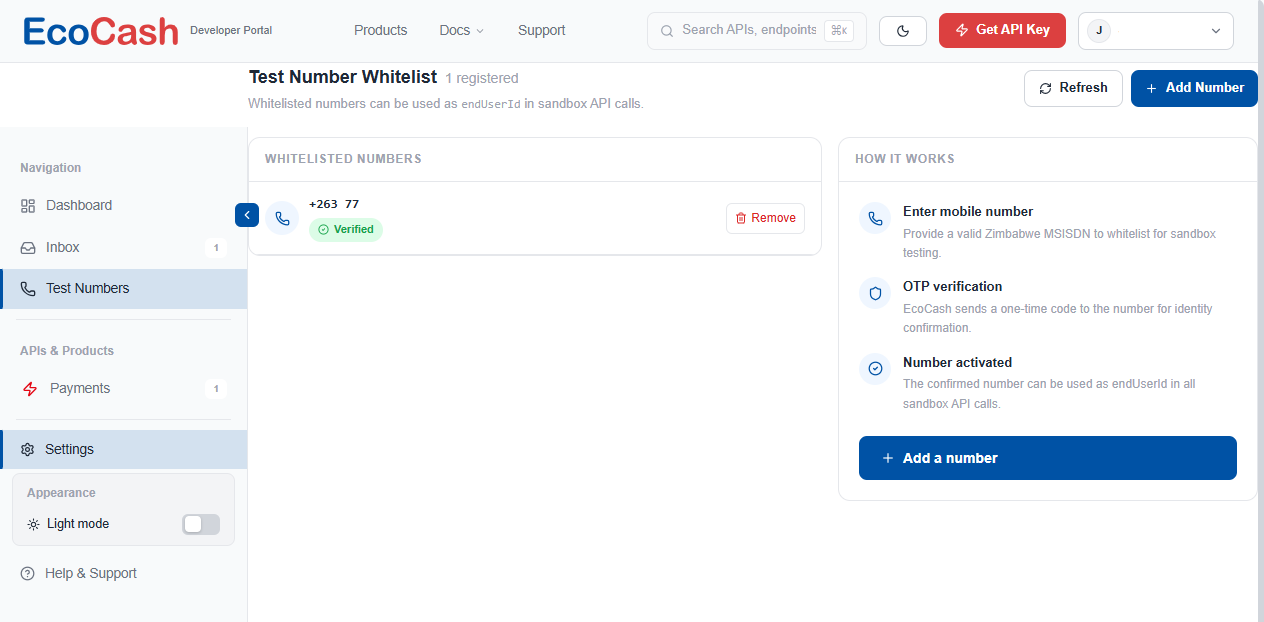
Checkpoint: you now have a username, a password, an Authorization header and a
verified test number. Continue to Authentication.
This page is generated from section 2 of the README in README.md. Spotted something wrong? Open an issue.