
Accepting payments
This is the core merchant flow: generate a payment code, show it, check it until it is paid or expires.
5.1 Generate a payment code
POST {baseUrl}/api/code/generate
{
  "reference": "ORD-10045",
  "narration": "Order ORD-10045",
  "currency": "USD",
  "amount": 450,
  "type": "PAYMENT"
}
amountis integer cents:450is US$4.50.referenceis your order or payment reference. Make it unique per code.narrationappears on your InnBucks merchant statement. Put your own unique reference in it so you can reconcile each payment (12.6).
Response (abridged):
{
  "stan": "ORD-10045",
  "authNumber": "9006055639",
  "processedDateTime": "2026-02-25 15:48:42.208",
  "responseCode": "00",
  "responseMsg": "Approved or completed successfully",
  "code": "535403380",
  "currency": "USD",
  "amount": 450,
  "qrCode": "<base64 image>",
  "description": "Order ORD-10045"
}
Save code, authNumber, stan and the time you generated it against the order before
showing anything to the customer.
5.2 Show the code to the customer
Show all of these together:
- The InnBucks logo (use the official artwork, see 5.6).
- The amount and currency the customer will pay.
- The code in large, copyable digits.
- The QR code, decoded from
qrCode. - The instruction: pay in the InnBucks app or dial
*569#. - A countdown from 10:00, because the code expires after 10 minutes.
- On mobile, a Pay using InnBucks App button (5.3).
InnBucks’ own example of the web version:
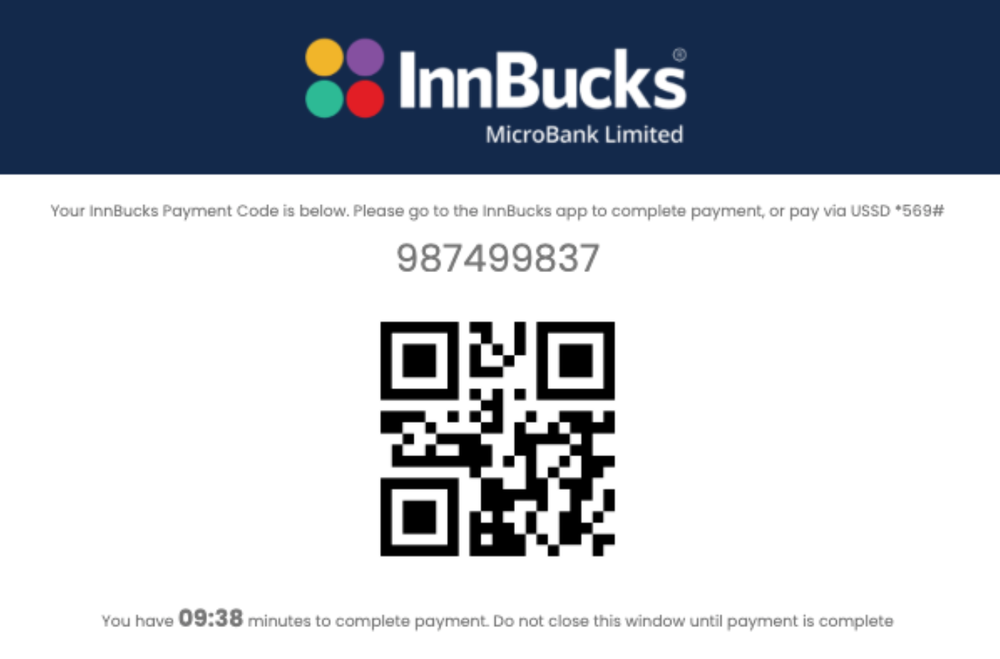
A web checkout page showing the payment code, the QR code and the remaining time.
To show the QR code, use qrCode as an image. It is a base64 string. If it does not already
start with data:, prefix it with data:image/png;base64,:
<!-- the qrCode value from the generate response goes after "base64," -->
<img src="data:image/png;base64,iVBORw0KGgoAAAANSUhEUgAA..." alt="InnBucks QR code for payment code 535403380"
     width="220" height="220">
5.3 Add the deep link on mobile
If your checkout runs on a phone, add a Pay using InnBucks App button. It opens the customer’s InnBucks app on the payment screen, so they only enter their PIN and confirm. It is the lowest-friction way to pay, and InnBucks strongly recommends it for mobile solutions.
| Environment | Deep link |
|---|---|
| Test | zw.co.innbucksnova.test://purchase?paymentToken={code} |
| Production | com.innbucks.customer://purchase?paymentToken={code} |
{code} is the code from the generate response. For example, for code 701564 in production:
com.innbucks.customer://purchase?paymentToken=701564.
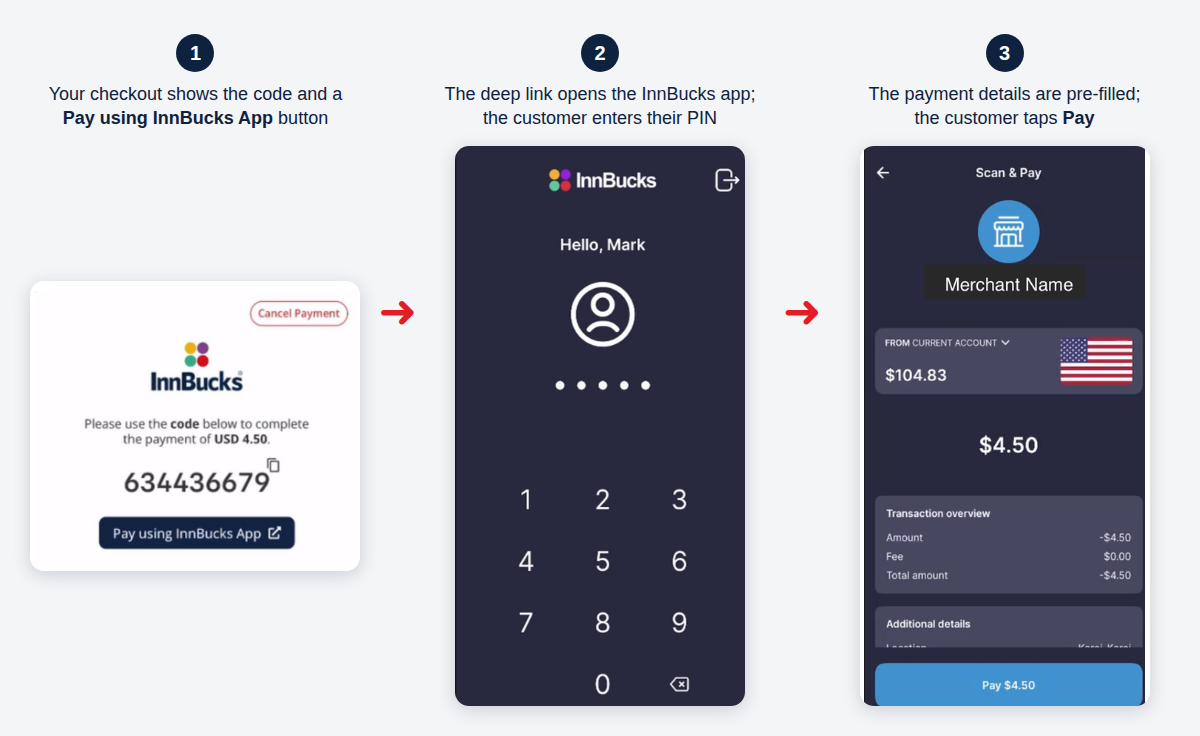
The deep-link journey: checkout → InnBucks app PIN entry → pre-filled payment confirmation.
- Choose the scheme from configuration (
INNBUCKS_ENV), never by hard-coding it: the test scheme opens only the test app, and the production scheme only the live app. - Keep showing the code and QR code next to the button. The deep link does nothing if the app isn’t installed, and a customer can always pay by USSD instead.
- Don’t show the button on desktop: there is no app to open.
5.4 Check the status
POST {baseUrl}/api/code/inquiry
{
  "code": "535403380"
}
Response:
{
  "stan": "1655116056",
  "authNumber": "7875",
  "processedDateTime": "2022-07-05 12:11:47.067",
  "responseCode": "00",
  "responseMsg": "Approved or completed successfully",
  "code": "535403380",
  "amount": "450",
  "status": "New",
  "timeToLive": "576sec",
  "description": "Order ORD-10045"
}
Read status only when responseCode is "00":
status |
Meaning | What to do |
|---|---|---|
New |
Generated, not yet paid | Keep checking |
Claimed |
The customer completed payment against the code | Paid. Fulfil the order |
Paid |
The customer completed payment against the code | Paid. Fulfil the order |
Expired |
The 10-minute validity passed without payment | Final. Offer a new code |
Timed Out |
The transaction window passed without payment | Final. Offer a new code |
InnBucks’ guidelines describe a paid code as Claimed; the API document lists both Claimed
and Paid as “finalised by the customer”. Treat both as paid. Compare status values
ignoring case and spaces (Timed Out, TIMED_OUT and TimedOut are the same).
Check at most once every 30 seconds per code, from 30 seconds after you generate it, until
the status is final. InnBucks asks for this explicitly: faster checking loads their servers and
does not make payments faster. timeToLive (for example "576sec") tells you how long the code
has left.
5.5 Put it together
customer clicks "Pay with InnBucks"
  └─▶ your server: create order (status: awaiting_payment)
        └─▶ generate code (amount in cents, reference + narration = order ref)
              └─▶ save code, authNumber, generated_at on the order
                    └─▶ show logo, amount, code, QR, *569#, countdown (+ deep link on mobile)
background job, every 30 s:
  inquiry(code) ─▶ Claimed / Paid ──▶ mark order paid, fulfil, show success
                ─▶ Expired / Timed Out ──▶ mark code expired, offer "generate a new code"
                ─▶ New ──▶ check again in 30 s (stop after ~11 minutes: mark "unknown", review)
- Run the status checks in a background job or queue, not inside the customer’s web request. The browser can poll your server for the order status.
- Fulfil only after an inquiry says
ClaimedorPaid. Never trust a customer’s “I’ve paid” button or a screenshot. - If the customer asks for a new code, keep checking the old code until it is final too. A customer may still pay it.
5.6 Brand and display guidelines
InnBucks reviews your customer journey during UAT for branding consistency (10.3). Use InnBucks’ own logo artwork and colours.
Approved InnBucks logo variants: use the white version on dark backgrounds and the navy version on light ones.
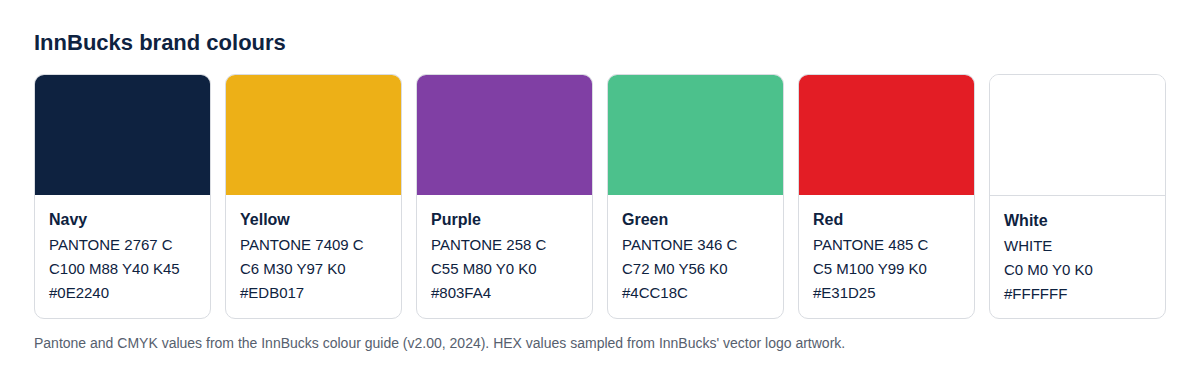
InnBucks brand colours: Pantone and CMYK values from InnBucks’ colour guide; HEX values sampled from InnBucks’ vector logo artwork.
| Colour | Pantone | CMYK | HEX (from the logo artwork) |
|---|---|---|---|
| Navy | 2767 C | C100 M88 Y40 K45 | #0E2240 |
| Yellow | 7409 C | C6 M30 Y97 K0 | #EDB017 |
| Purple | 258 C | C55 M80 Y0 K0 | #803FA4 |
| Green | 346 C | C72 M0 Y56 K0 | #4CC18C |
| Red | 485 C | C5 M100 Y99 K0 | #E31D25 |
| White | White | C0 M0 Y0 K0 | #FFFFFF |
- Don’t redraw, recolour, stretch or crop the logo. Use the navy wordmark on light backgrounds and the white one on dark backgrounds.
- A navy (
#0E2240) Pay using InnBucks App button with white text matches InnBucks’ example checkout (5.3). - The HEX values are for screens and come from InnBucks’ own logo file; the colour guide itself gives only Pantone and CMYK. For print, use the Pantone or CMYK values.
- Use the name InnBucks (capital I, capital B, one word).
This page is generated from section 5 of the README in README.md. Spotted something wrong? Open an issue.